

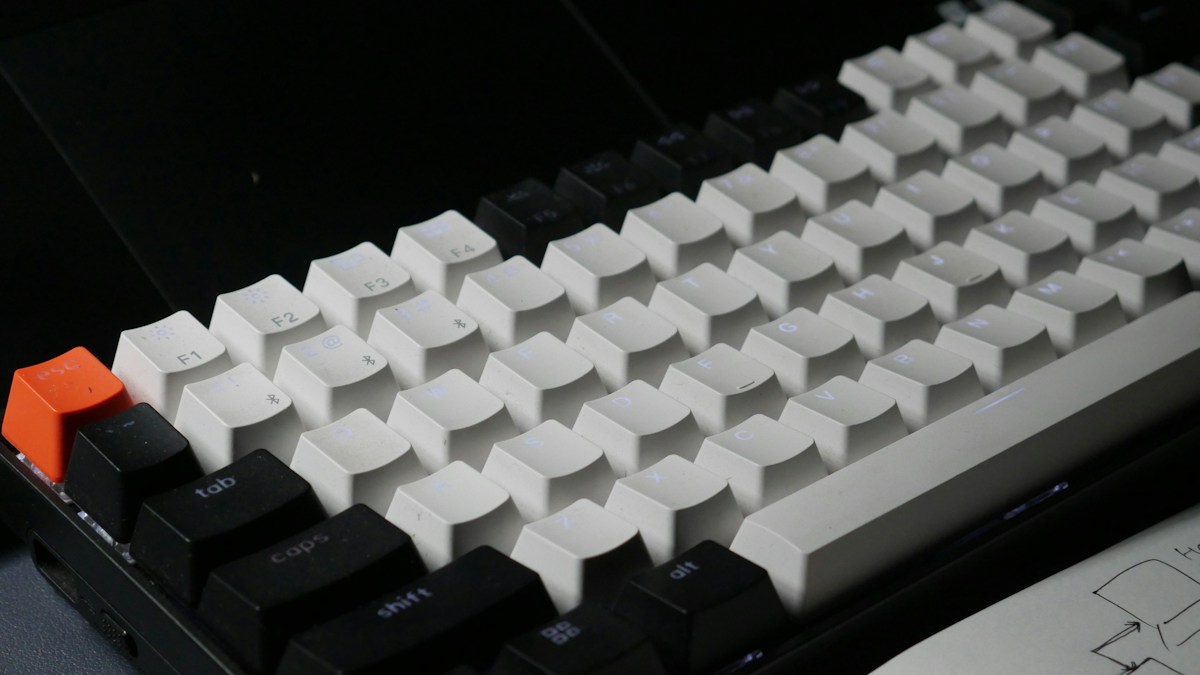
Firmware engineering for high-speed touch typing: dual-function tap/hold keys, bilateral combinations, and tapping term calibration in QMK and ZMK.
What Are Home Row Modifiers (HRMs)?
Home Row Mods (HRMs) are an advanced firmware innovation that eliminates reaching for outer modifier keys entirely. Using open-source keyboard firmware (QMK or ZMK), the standard home row typing keys (A, S, D, F for the left hand; J, K, L, ; for the right hand) are assigned dual functions: when tapped quickly, they output regular letters; when held down, they act as Shift, Control, Alt/Option, and Command/GUI.
The GACS vs ACGS Layout Conventions
The standard arrangement of home row modifiers follows the GACS (GUI, Alt, Control, Shift) or CAGS order from outer to inner fingers. Placing “Shift” on the index finger (F and J) or ring finger (S and L) distributes modifier strain across the strongest fingers. To type “Command + C”, simply hold down the home row “A” key with your left pinky and tap “C”.
Tuning Tapping Term and Bilateral Combinations
The primary challenge of home row mods is eliminating accidental misfires (e.g. typing “f” quickly and having the computer register “Shift” instead). In QMK configuration, tune the `TAPPING_TERM` (typically 175 to 220 milliseconds) and enable `PERMISSIVE_HOLD` and `IGNORE_MOD_TAP_INTERRUPT`. Enable “Bilateral Combinations”: a modifier on the left hand only activates if a key on the opposite right hand is struck, preventing same-hand rolling misfires.
Technical Specifications & Engineering Matrix
| Home Row Key | Tap Output | Hold Output (GACS Standard) | Finger Assignment | Usage Frequency |
|---|---|---|---|---|
| A / ; | Letter “A” / Semicolon | GUI (Command / Windows Key) | Pinky Finger | Operating System Shortcuts |
| S / L | Letter “S” / Letter “L” | Alt / Option Key | Ring Finger | App Navigation & Special Symbols |
| D / K | Letter “D” / Letter “K” | Control Key | Middle Finger | Terminal & Editorial Shortcuts |
| F / J | Letter “F” / Letter “J” | Shift Key | Index Finger (Strongest) | Capital Letters & Selections |
💡 Expert Field Recommendation
Always enable “Bilateral Combinations” (cross-hand tapping rules) in your firmware. This guarantees that rolling keys on the same hand (like typing “as” or “fa” in fast English words) will NEVER accidentally trigger a modifier shortcut.
Diagnostic Troubleshooting Checklist
- Accidental Capital Letters Appearing During Fast Typing: Your tapping term is too short; increase `TAPPING_TERM` in rules.mk from 175ms to 200ms or 220ms to allow faster finger rolls.
- Keyboard Feels Laggy and Waits to Output Letters: Ensure you have enabled `QUICK_TAP_TERM` so double-tapping a home row letter outputs consecutive characters instantly without waiting for hold timeouts.
- Shortcuts Misfiring When Typing in Terminal: Switch from GACS to ACGS layout if you frequently execute complex multi-key terminal sequences (Ctrl+Alt+T).
Frequently Asked Questions
Can home row mods work on wireless Bluetooth keyboards?
Yes, ZMK firmware is built natively for wireless BLE split keyboards (like Corne Wireless) and supports full home row mod syntax with zero Bluetooth latency.
How long does it take to get used to Home Row Mods?
Expect 3 to 5 days of conscious adjustment; once mastered, returning to awkward pinky reaching feels archaic and painfully slow.
Article researched, lab-tested, and verified by Nolan Drake, dedicated technical specialist and editorial contributor.
